Manipulators of Edge Blend |
  
|
Manipulators of Edge Blend |
|
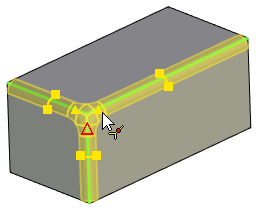
Manipulators are helper graphic widgets for dynamically defining main numerical parameters of the blend. Manipulators appear automatically once the objects for blending have been selected. Their quantity, look and size depend on the type of blend, the kind of selected objects and the type and values of the parameters modified by them.
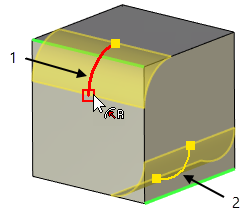
Manipulators are displayed in various colors. By default, the active manipulator (the one being currently dragged using mouse) is drawn red, all the rest (inactive) are yellow.
|
1 - Active manipulator |
2 - Inactive manipulator |
Using manipulators for blending of many edges at once may cause delays in system responses, especially on low-performance computers. To speed up the system in such cases, manipulators can be turned off. This is controlled by the respective checkbox in the Options tab of the Parameters window.
Offset manipulators are always displayed individually for each vertex. Other kinds of manipulators could be either individual for each edge or common for a whole edge chain.
Constant-radius rounding manipulators
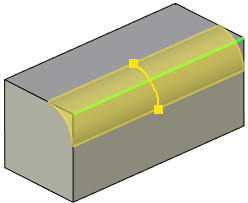
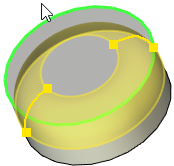
Radius manipulators have a shape of a blend surface's cross-section (arc) with two square markers at endpoints.
On straight edge a single manipulator appears at the midpoint. On curved open edges two manipulators split blend surface in equal length sections. On curved closed edges either two or four manipulators might appear in different cases.
Moving the mouse cursor over any of a manipulator's endpoint markers leads to a radius icon appearing near the cursor. Dragging the mouse while holding
 , when the radius icon is present, leads to blend Radius value change in accordance with the cursor movement. Depending on the Common Properties checkbox condition, Radius changes either for all edges at once (which affects the appearance of their manipulators) or for the corresponding edge only. Both endpoint markers of a single manipulator work in the same way - it doesn't matter which one to use.
Variable-radius rounding manipulators
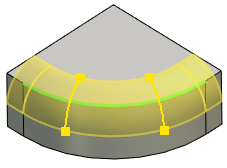
Radius manipulators have a shape of a blend surface's cross-section (arc) with two square markers at endpoints.
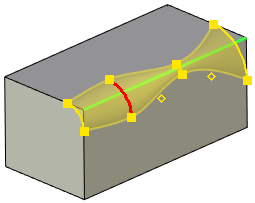
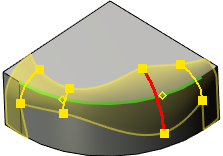
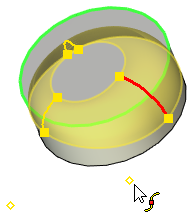
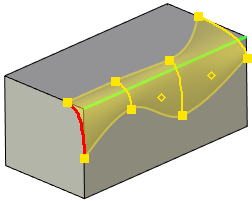
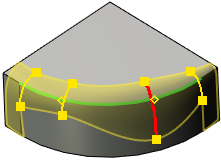
Quantity of manipulators for each edge (or edge chain) depends on the quantity of radius change critical points. By default at least two points are created - start and end. On open edges an individual manipulator appears for each point. Start and end points of closed edges have a common manipulator, due to necessity of having equal radii at such points (otherwise blend could not be created)
Moving the mouse cursor over any of a manipulator's endpoint markers leads to radius icon appearing near the cursor. Dragging the mouse while holding, when radius icon is present, leads to blend Radius value change in accordance with the cursor movement. Depending on the Common Properties checkbox condition, Radius changes either for all edges at once (which affects the appearance of their manipulators) or for the corresponding edge only. Both endpoint markers of a single manipulator work in the same way - it doesn't matter which one to use.
On intermediate points besides from radius manipulators, point position manipulators appear. They look like an unfilled contour ( - active,
  - inactive) and are located a bit aside a corresponding radius manipulators. Sometimes point position manipulator might appear relatively far from corresponding radius manipulator.
Moving the mouse cursor over a point position manipulator leads to a point position icon  appearing near the cursor. Dragging the mouse while holding, when point position icon is present, leads to Position (%) of the corresponding point change in accordance with the cursor movement. Depending on the Common Properties checkbox condition, Position (%) changes either for all edges at once (which affects the position of their manipulators) or for the corresponding edge only.
Variable-elliptical rounding manipulators
Offset from face manipulators have a shape of a blend surface's cross-section with two square markers at endpoints. Shape of cross-section depends on blend parameters.
Quantity of manipulators for each edge (or edge chain) depends on the quantity of critical points. By default at least two points are created - start and end. On open edges an individual manipulator appears for each point. Start and end points of closed edges have a common manipulator, due to necessity of having equal offsets at such points (otherwise blend could not be created)
Each of two manipulator's endpoint markers represents its own offset value (Offset 1 or Offset 2). Moving the mouse cursor over an endpoint marker leads to a radius icon appearing near the cursor. Dragging the mouse while holding, when radius icon is present, leads to a corresponding Offset value change in accordance with the cursor movement. Depending on the Common Properties checkbox condition, Offset changes either for all edges at once (which affects the appearance of their manipulators) or for the corresponding edge only.
On intermediate points besides from offset from face manipulators, point position manipulators appear. They look like an unfilled contour ( - active, - inactive) and are located a bit aside a corresponding offset from face manipulators. Sometimes point position manipulator might appear relatively far from corresponding offset from face manipulator.
Moving the mouse cursor over a point position manipulator leads to a point position icon appearing near the cursor. Dragging the mouse while holding, when point position icon is present, leads to Position (%) of the corresponding point change in accordance with the cursor movement. Depending on the Common Properties checkbox condition, Position (%) changes either for all edges at once (which affects the position of their manipulators) or for the corresponding edge only.
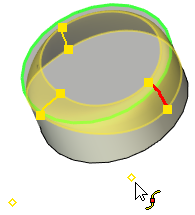
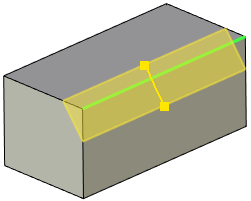
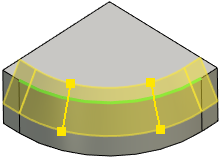
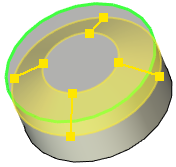
Chamfer manipulators have a shape of a blend surface's cross-section (straight line segment) with two square markers at endpoints.
On straight edge a single manipulator appears at the midpoint. On curved open edges two manipulators split blend surface in equal length sections. On curved closed edges either two or four manipulators might appear in different cases.
In chamfer by offsets and chamfer by offsets along faces modes each of two manipulator's endpoint markers represents its own offset value (Offset 1 or Offset 2).
Moving the mouse cursor over any of a manipulator's endpoint markers leads to a radius icon appearing near the cursor. Dragging the mouse while holding, when radius icon is present, leads to a corresponding Offset value change in accordance with the cursor movement. Depending on the Common Properties checkbox condition, Offset changes either for all edges at once (which affects the appearance of their manipulators) or for the corresponding edge only.
In chamfer by length and angle mode manipulator's way of operation depends on the condition of the checkbox which is located to the left side of the Angle field on the Edges tab of the Parameters window. If checkbox is enabled (by default) both endpoint markers represent Length value, while Angle does not depend on the manipulators usage. Disabling the checkbox makes one of the endpoint markers represent Length and other represent Angle. As to the rest manipulators in chamfer by length and angle mode are used in a similar way as in other types of chamfer modes.
Offset from point manipulators
Offset from point manipulators have a shape of a triangle. They appear on edges with offset (Start or End) checkboxes enabled. When zero offset values are set for all edges meeting at a given vertex, manipulators will overlap at vertex.
Moving the mouse cursor over an offset manipulator leads to a vertex icon appearing near the cursor. Dragging the mouse while holding, when radius icon is present, leads to a corresponding Offset value change in accordance with the cursor movement. Depending on the Common Properties checkbox condition, Offset changes either for all edges at once (which affects the position of their manipulators) or for the corresponding edge only.